LUMAAI STUDIO

Order · PaymentComing soon

Table & QR order

Order from the table order or guest's phone, straight to the kitchen

This solution is getting ready for official launch. Only basic information is available for now.

At a glance · Table & QR order

LUMA table/QR ordering is a store ordering solution where customers scan a table's QR code with their phone or order directly from a table device, and that order flows straight to the kitchen display (KDS) and the call board. Customers order from their phone browser with no app install, people at the same table can join the same table order together, and staff calls and bill requests are handled right from the screen. The menu and prices use the same data as LUMA POS.

Who it's for

  • Korean BBQ, meat restaurants, and bars with many tables where staff time spent taking orders adds up
  • Pay-later stores with frequent additional orders where billing happens at the end
  • Restaurants wanting to cut down on order mix-ups between the kitchen and the floor
  • Tourist-area restaurants where explaining the menu to foreign customers is a burden
  • Food courts and takeout stores that call customers by number (call board)
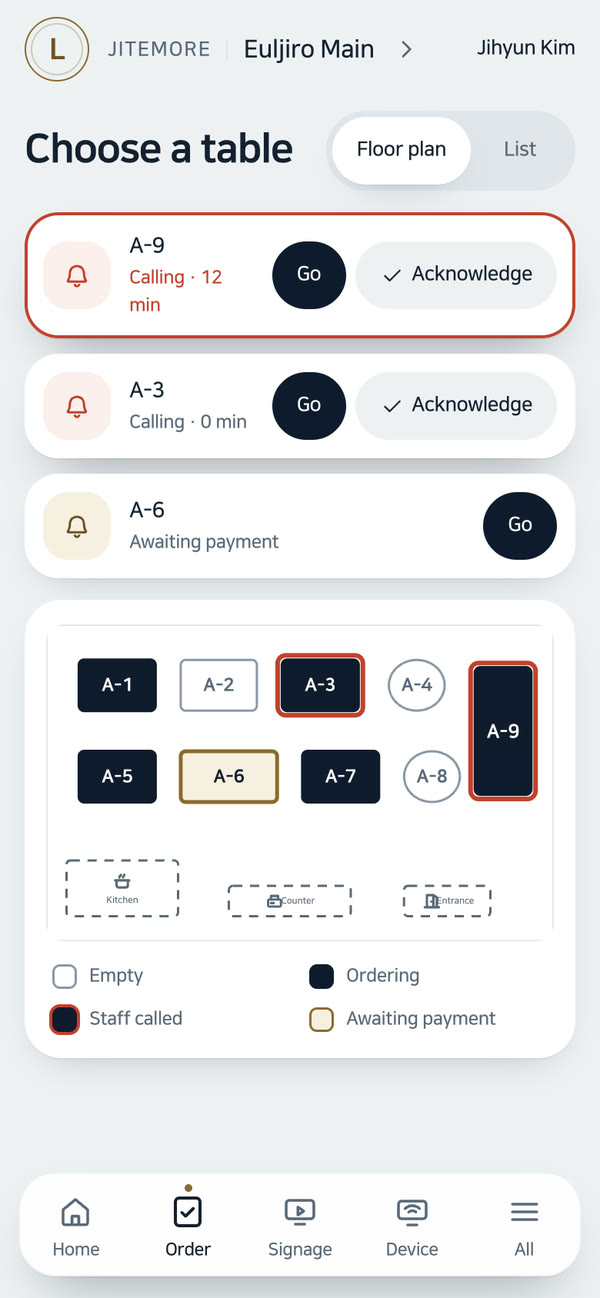
Real screen of Table & QR order

Actual admin app screen · sample store

If this sounds familiar

Running between tables to take orders during rush hours?

Key features

01 / 04

Customer ordering screen (QR · table device)

QR ordering with no app

When a customer scans the table's QR code with their phone camera, that table's ordering screen opens right away. No app install or sign-up required.

Order together as a group

Even if people at the same table each scan with their own phone, it's combined into one table order. Orders are split, but the table total shows as one.

Order history, staff call, and bill request

Customers can see what they've ordered so far and its cooking status, and call staff or request the bill from the screen. Requests appear instantly on the POS table screen.

Menu in 6 languages

When a customer picks their language — Korean, English, Japanese, Chinese, Spanish, or German — the approved menu translation changes along with it.

Table device screen (10-inch landscape)Coming soon

The table device uses a familiar standard layout (categories on the left, photo menu in the middle, cart on the right), always showing the table number and the "order total so far." During idle time it shows ads, and tapping it starts an order.

Choose a language on the idle screen

The table device's idle screen has buttons for six languages, so international guests can switch to their own language from the very first screen. It starts in the customer screen language set in the console.

02 / 04

Store management

Table & QR order — Store management

Create tables in bulk and print QR codes

Create a range of table numbers at once and print QR codes for each table right away. If you renumber tables, you'll be warned that existing QR codes need to be reattached.

One with the POS table screen

Orders from QR and table devices flow straight into the POS table screen. Staff handle table moves, settlement, and clearing from the floor plan, and clearing a table closes the customer screen immediately.

Idle-screen ads and QR order banner

Pick idle-screen ads for the table device and the banner shown at the top of the QR order screen from LUMA AI CMS media.

Prevent prank and duplicate orders

Order sessions are issued by the server and close after time passes or on cleanup. Bursts of requests in a short time are limited, and the same order submitted twice is only placed once.

03 / 04

Kitchen display (KDS)

Orders reach the kitchen instantly

Orders from kiosk, table, QR, and counter appear on the kitchen display within seconds, with table number and dine-in/takeout shown.

New order → Cooking → Done

Move cooking status through three simple steps, with a confirmation on each tap to prevent accidental advances. Reverting a completed order lets you call it again.

Alert sounds and reminders

New orders, cancellations, and long-waiting orders are each announced with a different sound, and the store chooses the sound type and volume.

Kitchen backlog notice

When the kitchen falls behind, a notice banner appears on the customer screen, and menu items with long cooking times can be dimmed and marked “Paused” for a while. Items are not removed or marked sold out, and this is off by default.

Remote/keyboard control and dark theme

For busy kitchens, you can advance orders with a remote or keyboard without touching the screen, and choose a dark or light theme to match a bright kitchen. The kitchen display text can be switched between 6 languages.

04 / 04

Call board

Ready numbers shown on a large screen

When the kitchen taps done, the number is highlighted on the call board and clears after a set time. Vertical ads can be shown alongside on the right side of the screen.

Voice number call

After a ding sound, the number is called out twice by voice. It can be announced in 6 languages to match the store's language.

Number rules and counter issuance

Set the number prefix, digit count, and daily reset, and issue numbers directly at the counter or call ready orders.

Order from the table, the kitchen knows instantly

One QR scan, kitchen display, and call board in one flow · AI-generated video

Equipment

Runs on this equipment

Customer's phone

Scan the table QR to order — no app install or sign-up needed, right from the phone's browser. Can be run with QR alone, no table device required

Required

Table QR sticker/card

The order entry point attached to each table — print per-table QR codes directly from the console

Required

LUMA box for kitchen display + landscape monitor

Shows incoming orders to the kitchen and advances cooking stages — also operable with remote/keyboard

Required

LUMA box for call board + large landscape display

Shows ready numbers in large text and calls them by voice — with vertical ads on the right side of the screen

Optional

Table device (10-inch landscape)

Lets customers order directly at the table and shows ads while idle — coming soon

Optional

POS (counter)

Table billing and staff call/payment request confirmation — the table screen of LUMA POS (PC browser or POS screen)

Required

How it works

From setup to operation

Barbecue restaurant dinner — pay-later table order

  1. The customer sits down, scans the table QR, and orders from the menu
  2. The order appears on the kitchen display with the table number, and cooking stages are advanced
  3. Even if the group adds more orders from their own phones, they all accumulate into one table total
  4. When the customer taps call staff or request bill on the screen, a notification appears at the POS
  5. Once the counter settles and clears the table, the customer screen also closes

Food court — from order to order call

  1. Order at the kiosk or counter and a number is issued
  2. The kitchen presses start cooking → complete
  3. The number appears large on the call board, and after a ding, the number is called twice
  4. Once the customer picks up the food, the number is cleared

Peak time when the kitchen is backed up

  1. Orders piled up in the kitchen exceed the store's set threshold
  2. A banner appears on the customer screen notifying that orders are backed up
  3. Menu items with long cook times are dimmed and marked “Paused” temporarily
  4. Once the kitchen clears up, the notice and markings disappear automatically

Use cases by industry

How these stores use it

BBQ restaurants · Korean pubs

At stores with frequent additional orders and payment at the end

By taking additional orders and staff calls via table QR and settling by table at the POS

Staff make fewer trips to take orders, and the order bundle for each table is kept accurate

Tourist-area restaurants

At places where explaining the menu to many foreign customers takes a long time

By letting customers view the menu and order in their own language on their phone

The burden of order communication is reduced, and customers can take their time choosing with photos and translations

Food courts · takeout specialty stores

At stores that call out numbers for ready food

By linking kitchen display completion with voice calls on the call board

Staff no longer need to shout numbers, and customers confirm their number with a large screen and voice

Restaurants with large kitchens

At places where paper order slips are often mixed up or lost

By gathering orders from all channels into one kitchen display and passing them through stages

You can see which orders waited how long, and cancellations and reversals are also recorded on screen

Cafés · brunch spots

At places where seated customers often order additional drinks

By taking additional orders right at the table via table QR

Customers don't need to line up again, and you don't miss additional order opportunities
Get started

Table & QR order, tailored to your store

Tell us your store size and the equipment you use, and we'll recommend the right setup and quote. We'll also check your existing screens and printers.

  • Live demoWe'll walk you through ordering, publishing, and management on real screens.
  • Custom setup & quoteWe pick only the solutions and equipment you need based on your industry, seating, and screen count.
  • Remote support after installationCheck device status in the console, and if an issue comes up, we'll help resolve it remotely.

Specs

Order entry points
Table QR (customer's phone browser) · table device (10-inch landscape)
Customer screen languages
Korean · English · Japanese · Chinese · Spanish · German
Payment timing
QR defaults to postpaid (settle at counter) · card payment integration in progress
Table session
3 hours by default · ends immediately on settlement/clearing · party join
Kitchen display
New order → cooking → complete · confirmation dialog · reversal · alert sound · remote/keyboard · 6 languages
Call board
Large landscape screen · order number voice call ×2 · vertical ad (400×1080)
Ad specs
Table device 1280×800 · QR banner 1080×360 · call board 400×1080
Security
Server-issued session · request rate limiting · duplicate order prevention

Frequently asked questions

Can I use table QR ordering right now?

LUMA table and QR ordering is coming soon. The 10-inch table device screen that sits on the table is in preparation, and we will provide the official release schedule and pilot adoption details through the purchase inquiry.

Do customers have to install an app to order by QR?

No. When a customer scans the table QR with their phone camera, that table's order screen opens right in the browser, and no sign-up is needed. Customers can choose their own language from 6 languages. Table order is coming soon.

If everyone in a group orders from their own phone, is it still billed as one table?

Yes. Orders that come in through the same table QR are grouped into one table with a single total, and payment is also settled at once per table. QR ordering defaults to pay-after: orders are taken first and paid at the counter. Table order is coming soon.

How are orders sent to the kitchen?

Kiosk, QR and counter orders appear on the kitchen display (KDS) within seconds, with the table number and a dine-in/takeout label. The kitchen moves each order through three steps: New order → Cooking → Done. When an order is marked Done, its number appears on the call board and is also announced by voice. The kitchen display can also be operated with a remote or a keyboard.

Tailor it to your store now.

Our team will help you work out the setup and quote.

Contact sales All solutions