LUMAAI STUDIO

Order · Payment

Self-service kiosk

Guests order themselves, plus coupons and points

At a glance · Self-service kiosk

LUMA Self-Service Kiosk is a self-order solution where customers pick menu items on a vertical touch screen and handle options, coupons, and points themselves. Since menus and prices share the same data as LUMA POS, changes made in the console reach the kiosk within seconds, and confirmed orders flow straight to the kitchen display (KDS) and call board. The screen supports 6 languages: Korean, English, Japanese, Chinese, Spanish, and German.

Who it's for

  • Cafes and bakeries with long checkout lines during lunch and dinner peaks
  • Fast food, snack, and food court stores looking to reduce order-taking staff
  • Stores in tourist areas, airports, and hotel lounges with many foreign customers
  • Franchise headquarters managing menus and prices across multiple stores from one place
  • Takeout stores that need order number calling due to high volumes of to-go orders
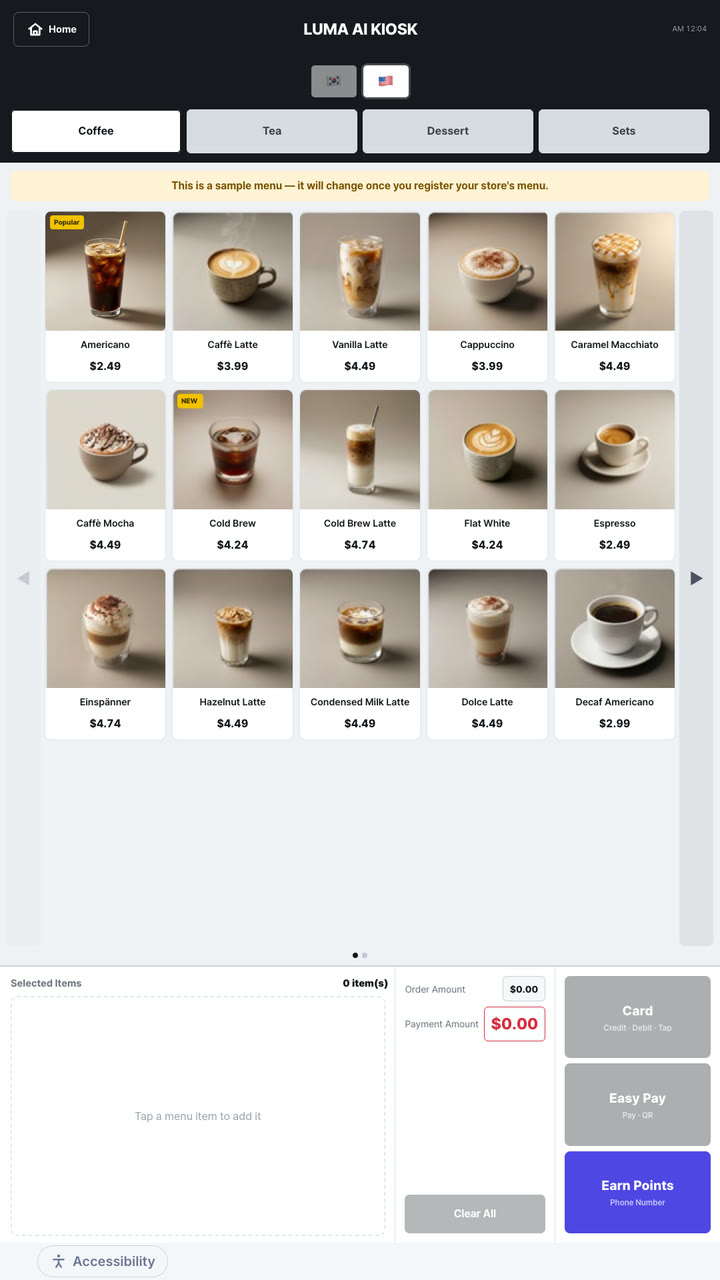
Real screen of Self-service kiosk

Actual product screen · sample menu (photos AI-generated)

If this sounds familiar

Losing customers to long checkout lines?

Key features

01 / 05

Order screen

Self-service kiosk — Order screen

Order completed on one screen

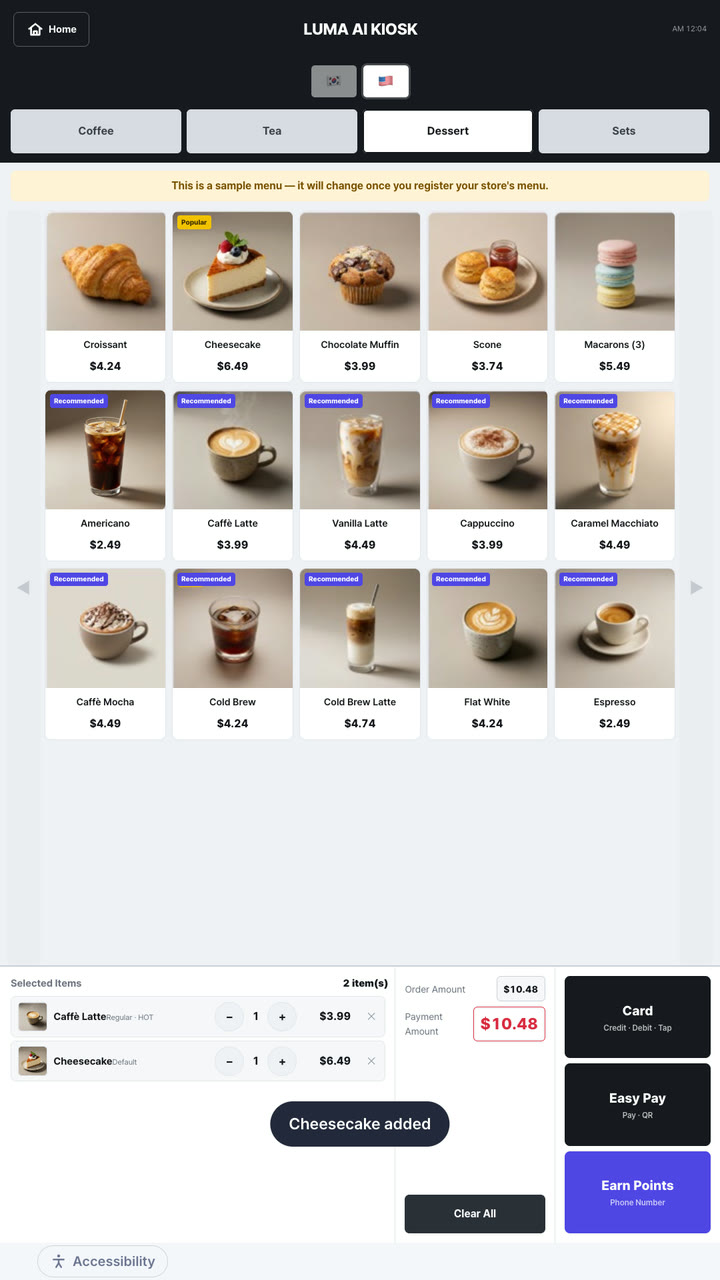
Categories, menu photos, selected items, total price, and the payment button are all on one screen, so customers can finish ordering without moving between screens.

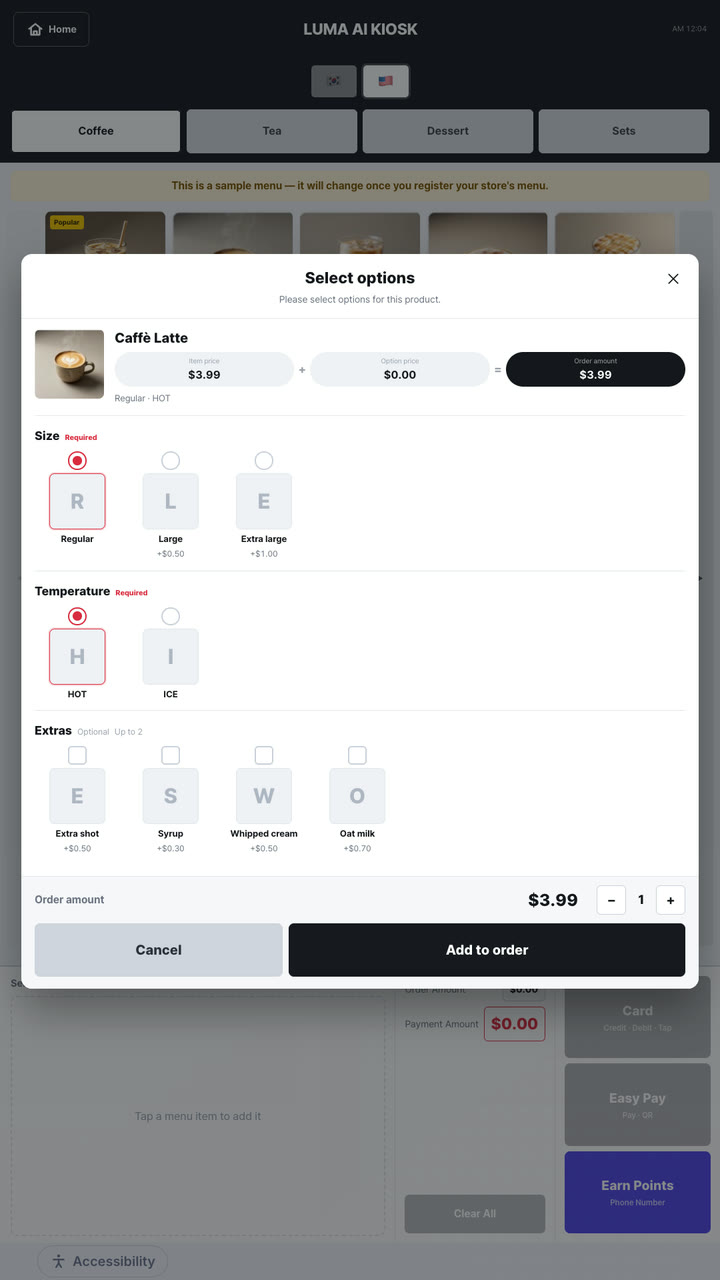
Option selection window

Customers choose options like size, temperature, and extra toppings with photos, and instantly see “item price + option price = order price,” so there's no confusion about cost. If a required option isn't selected, they're notified before adding it to the cart.

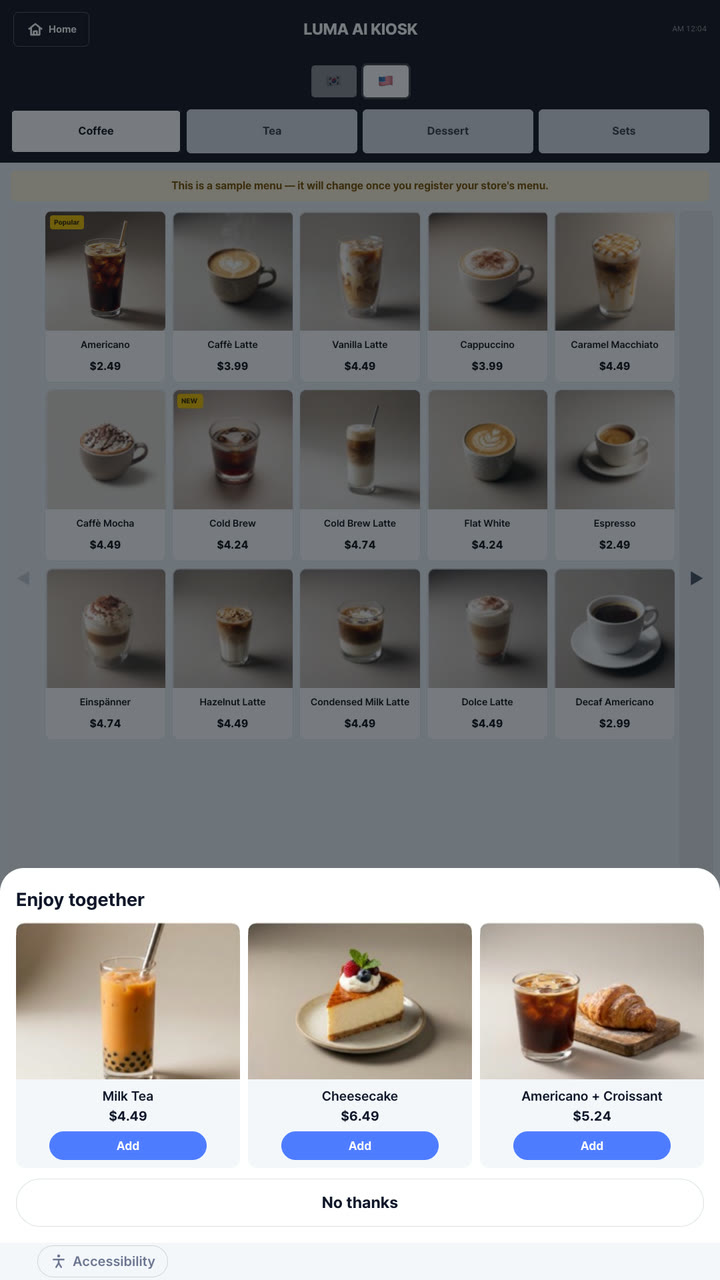
Pair-well recommendations (upsell)

Stores set rules and time windows like “recommend this item when that item is added” or “coffee with bagels in the morning.” Sold-out items are automatically excluded, and the “No thanks” button is shown just as large so customers never feel pressured.

Dine-in/takeout selection

At the end of the order, customers are asked whether it's for dine-in or takeout, and this is passed to the kitchen display as a clear marker. Takeout-only stores can turn this question off.

Customer cancellation right after ordering

On the order number screen, for a time the store sets (15, 30, or 60 seconds), customers can tap “Cancel” to fix a mistake before the kitchen starts cooking.

02 / 05

Coupons, points, and receipts

Self-service kiosk — Coupons, points, and receipts

QR coupons

Issue coupons with a percentage or fixed discount, minimum order amount, maximum discount, validity period, usage count, and applicable stores. Customers use them by scanning a QR code at the kiosk scanner or entering a number.

Phone number point earning and redemption

Customers sign up as members with their phone number and earn or redeem points. The phone number is stored as an irreversible value, with separate confirmation of consent and age (14+).

Receipt and member card printing

After an order is completed, a receipt is printed according to the store setting (always print, ask, or summary only). At sign-up, a member slip with a QR code is printed for immediate use on the next visit.

03 / 05

Screens anyone can use easily

Self-service kiosk — Screens anyone can use easily

6 languages

Shows the languages the store has chosen—Korean, English, Japanese, Chinese, Spanish, German—as chips on the first screen. Store names can also be set separately per language.

Low screen and large text mode

Offers a mode that lowers the whole screen for wheelchair users and a mode that enlarges text by 1.25×. Automatically returns to normal when the next customer arrives.

Voice guidance

Can guide customers by voice at each ordering step (store can turn on or off). Voice guidance is ready in 6 languages.

Gentle timeout notice

If the customer steps away, it calmly asks “Would you like to continue your order?” and returns to the home screen. No red warnings or urgent sounds are used, and the store can extend the waiting time.

04 / 05

Idle screen and advertising

Self-service kiosk — Idle screen and advertising

Idle screen advertising

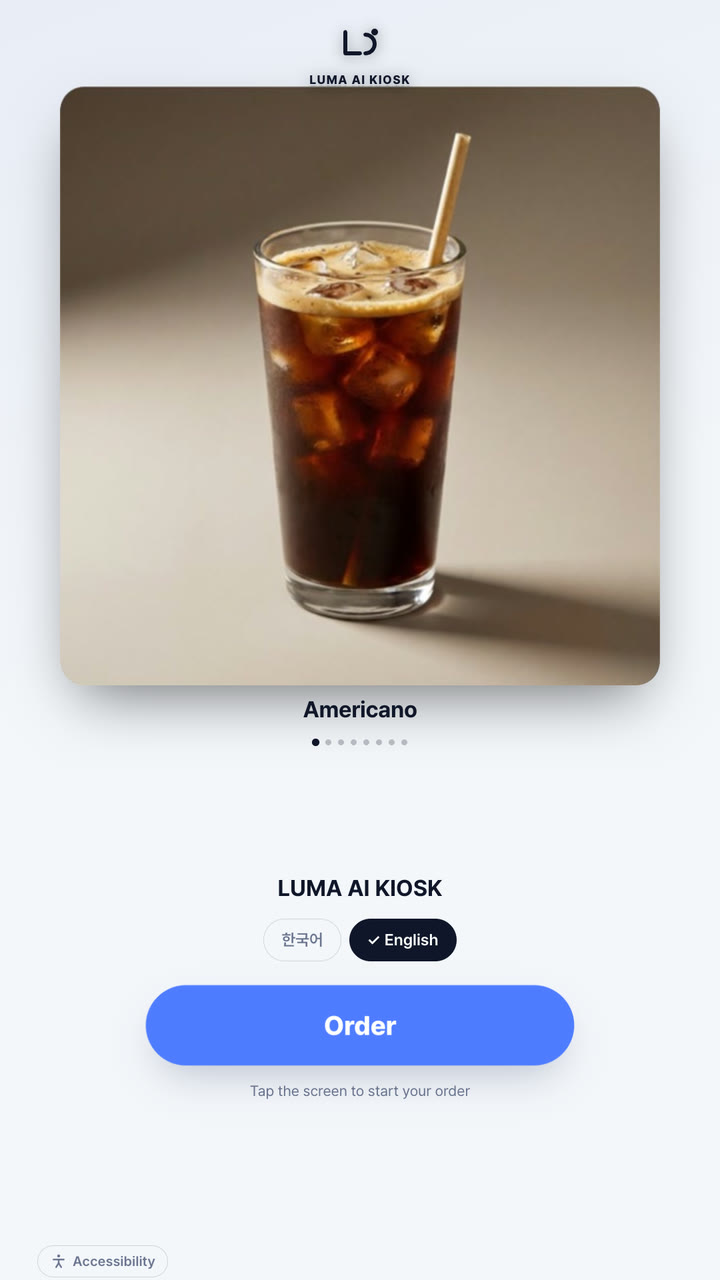
When no one is ordering, an ad Program or image/video created in LUMA AI CMS is shown full screen. Tapping the screen immediately goes to ordering.

Popular menu photo rotation

Even without ads, photos of the best-selling menu items over the past 2 weeks rotate on the idle screen, showing waiting customers what's on offer.

Ready order number strip

Shows ready order numbers at the bottom of the idle screen, so even small stores without a call board can notify customers.

Logo, accent color, and theme

Set the store logo, brand accent color, and light/dark theme in the console, check them with a scaled-down preview, and save. The console warns in advance if the accent color is hard to read.

05 / 05

Operations and connectivity

Self-service kiosk — Operations and connectivity

POS menu as-is, reflected in seconds

The kiosk menu is the POS menu itself. When you toggle sold out or change a price in the console, the kiosk checks about every 5 seconds and reflects it immediately, removing any already-added sold-out items with a notice.

Automatic kitchen and call board connection

Confirmed orders appear on the kitchen display (KDS) within seconds, and when the kitchen taps complete, the call board and idle screen order number strip call the customer.

No blank screen even if the internet drops

If the connection drops, the saved menu is still shown with a “Reconnecting” notice. Order confirmation is blocked until the connection returns, and customers are guided to call staff, so no order silently disappears.

Remote installation and management

When you assign a screen link to a device in the console, the kiosk fetches and opens it on its own, and automatically restores the order screen after a reboot. Revoking the link stops that screen instantly.

Lines disappear, orders become accurate

Guests choose, the kitchen receives, the call board announces · AI-generated video

Equipment

Runs on this equipment

LUMA box (RK3566 · RK3576)

The main unit that runs the kiosk screen and connects printers and scanners. It connects with a single registration code in the console, and the order screen appears automatically on power-on.

Required

Portrait touch display (1080×1920 · 21.5″ class)

The screen where customers choose menu items and place orders. It becomes an advertising screen when no one is ordering.

Required

Receipt printer (thermal)

Prints receipts and member QR slips. Plug it into the serial port on the box and it auto-detects the port and speed.

Optional

QR scanner

Reads coupon QR and member QR codes (for coupons and membership, not payment).

Optional

Kitchen display (KDS) box + landscape monitor

Shows kiosk orders directly in the kitchen and calls guests on the call board when done. Recommended to use together.

Optional

How it works

From setup to operation

Lunch-peak café — from order to pickup with no line

  1. The idle screen cycles through popular menu photos and today's ads
  2. The guest taps the screen, picks a language, and adds items to cart
  3. In the options window they choose size, extra shots, and add a recommended dessert
  4. They scan a coupon QR and earn points with their phone number
  5. At order confirmation they choose dine-in/takeout and confirm the order; a number and receipt print out
  6. The order appears on the kitchen display, and when done the call board announces the number by voice

When an item sells out

  1. The manager marks a menu item sold out from the console or a tablet
  2. Within seconds the kiosk grays out the item and labels it “Sold out”
  3. Guests who already added it to cart see a notice: “Removed — not available right now”

Setting up a new franchise store

  1. HQ creates the store in the console and registers the box with a pairing code
  2. The device is placed in the store and assigned kiosk/kitchen roles with screen links
  3. HQ's menu is assigned to that store, with logo, language, and recommendation rules set
  4. A test order confirms the number, kitchen, and call flow end to end before opening

Use cases by industry

How these stores use it

Franchise café

At a store where lines pile up at the register during commute and lunch hours

By placing 2 kiosks at the entrance and letting guests handle options, recommendations, and coupons themselves

Staff can focus on making drinks while guests take their time choosing exactly the options they want

Fast food / burgers

At a store with many set combos and add-on options

By letting the kiosk handle set-combo selection and “pair it with” recommendations

Order mistakes drop, and sides/drink recommendations reach every guest at the same consistent quality

Tourist-area restaurants / airport stores

At a location with many foreign guests where explaining the menu takes time

By turning on 6-language screens, localized store names, and voice guidance

Guests can order by viewing photos in their own language, easing the communication burden

Bakery / dessert café

At a store with many regulars where points and coupons matter

By letting guests use phone-number points and QR coupons directly at the kiosk

Staff don't need to explain the rewards program every time, and return-visit perks continue naturally

Food court · snack bar

At stores with many takeout orders calling customers by number

Connect kiosk orders to the kitchen display and call board

Order and call flow together, reducing “Is mine ready yet?” inquiries

Get started

Self-service kiosk, tailored to your store

Tell us your store size and the equipment you use, and we'll recommend the right setup and quote. We'll also check your existing screens and printers.

  • Live demoWe'll walk you through ordering, publishing, and management on real screens.
  • Custom setup & quoteWe pick only the solutions and equipment you need based on your industry, seating, and screen count.
  • Remote support after installationCheck device status in the console, and if an issue comes up, we'll help resolve it remotely.

Specs

Screen orientation
Portrait (based on 1080×1920)
Customer screen language
Korean · English · Japanese · Chinese · Spanish · German
Currency
KRW · USD · EUR · JPY · GBP · CNY · MXN · CLP (follows POS settings)
Menu update
Checked and applied roughly every 5 seconds after console changes
Payment
Supports prepaid and postpaid flow · card payment integration in progress (can operate via counter payment)
Discounts · Membership
QR coupons (percentage · fixed amount) · phone number points
Accessibility
Low screen mode · 1.25x large text · voice guidance · timeout extension
Offline
Displays saved menu · order confirmation resumes once connection is restored
Output
Receipt (always · ask · summary) · member QR slip
Phone number region
Korea · Japan · Spain · US · China · Germany formats
Frequently asked questions

Can the kiosk take card payments?

The payment step screens and the prepaid/postpaid flows are ready, but actual card payment is still being prepared, pending integration with the payment provider and terminal. For now, you take orders at the kiosk and customers pay at the counter. Please ask us about the rollout schedule through an adoption inquiry.

Can foreign customers use the kiosk too?

Yes. The kiosk supports Korean, English, Japanese, Chinese, Spanish and German screens, and the store chooses which languages to offer and in what order in the console. Menu names and descriptions are translated with the AI menu language pack, but only translations approved by the store are shown to customers. You can also set the store name for each language.

Is the kiosk easy to use for wheelchair users and older customers?

It offers a low-screen mode that lowers the entire screen, a large-text mode that enlarges text by 1.25 times, and step-by-step voice guidance. If a customer walks away, the kiosk doesn't rush them: it asks calmly and then returns to the first screen. The store can lengthen the waiting time.

What happens to kiosk orders if the internet goes down?

Saved menus stay visible so the screen never goes blank, but order confirmation is blocked until the connection returns, and the kiosk tells customers to call a staff member. This is to prevent orders from silently disappearing. Once the connection is back, customers can place orders again automatically.

Can I use coupons and points on the kiosk?

Yes. You issue percentage and fixed-amount coupons in the console, and customers use them by holding a QR code up to the kiosk scanner or entering a number. Points can be earned and used with a phone number; the phone number is converted to an irreversible value before it is stored, and consent is collected separately. When a customer signs up as a member, you can print a member slip with a QR code on it.

Tailor it to your store now.

Our team will help you work out the setup and quote.

Contact sales All solutions