LUMAAI STUDIO

Remote management

LUMA Remote Support

Act instantly by viewing the screen, without visiting the store

At a glance · LUMA Remote Support

LUMA Remote Support is a device management feature that lets you remotely view and control a LUMA box installed at a store from a console or phone. It provides live screen viewing and touch control, file transfer, remote commands like restart and screen rotation, and device status monitoring all in one place. Every remote session has a set time limit, and a record of who connected and when is kept.

Who it's for

  • Franchise and chain headquarters with multiple stores
  • Unmanned stores with periods without staff
  • Installation and maintenance companies that install and manage signage and kiosks
  • Operators with stores overseas or in remote areas
  • Stores with screens mounted in hard-to-reach places like walls or ceilings
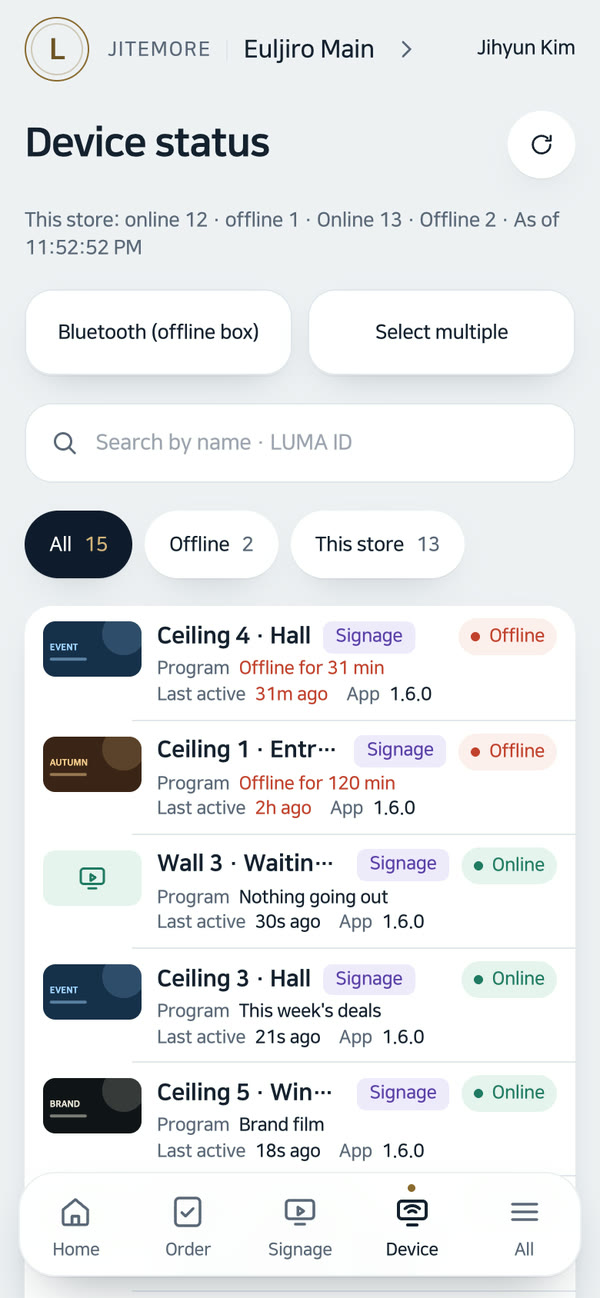
Real screen of LUMA Remote Support

Actual admin app screen · Example store

If this sounds familiar

Is a technician driving to the store for one small issue?

Key features

01 / 05

Remote screen and control

LUMA Remote Support — Remote screen and control

Live screen viewing and control

View the store device's screen from the console while clicking to tap, dragging to swipe, and typing text. You can also press back and home buttons remotely.

Connect even when no one is at the store

You can connect remotely even if there's no one at the device to press the permission button. Instead, “Remote support in progress” is shown on the device screen so the store can tell.

Remote control from your phone

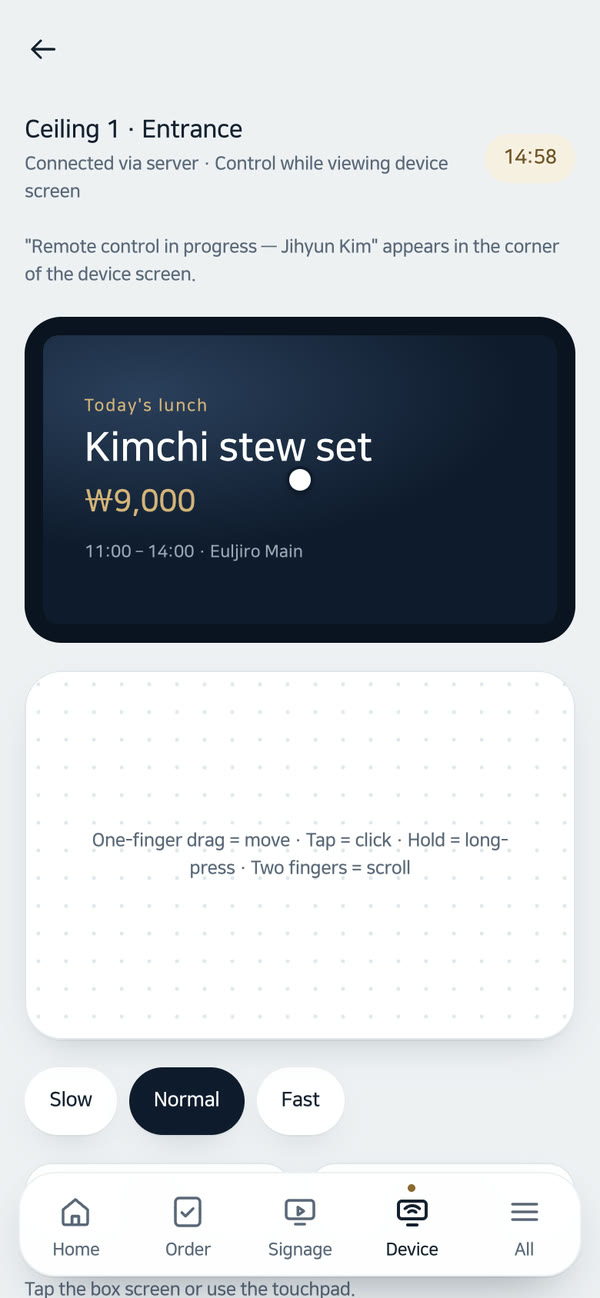
In the admin app, the device screen appears on top and a touchpad below. Control your store's device with just a phone, even on the move.

Automatic screen masking for guest info

When a screen shows guest information, like kiosk point accumulation, the device stops sending the screen and pauses control temporarily. It reappears once the guest finishes.

Capture screen now

Get a snapshot of what's currently showing on the device with one button. You can also check it per device from the content publish screen.

02 / 05

Remote file management

Upload and download files

View the file list on the device and upload, download, rename, or delete files. Transfer large video files up to 2GB.

Protected system area

System areas required for device operation are read-only by default. The server adds an extra layer of protection against accidentally deleting critical files that could prevent the device from starting.

Automatic cleanup of transferred files

Files sent or received remotely are kept on the server for only 7 days and then automatically deleted.

03 / 05

Remote commands and checks

LUMA Remote Support — Remote commands and checks

Remote restart

Restart the device from the console when the screen freezes. If the device is off, it runs as soon as it reconnects.

Screen rotation buttons

Change the screen orientation with 0°, 90°, 180°, 270° buttons and check the current angle instantly.

Remote receipt printer check

Check the printer connection and get results with one button from the kiosk device card.

Day-by-day power schedule links

Day-by-day on/off power schedules set in LUMA AI CMS power management also appear in the device list.

04 / 05

Device status monitoring

LUMA Remote Support — Device status monitoring

Connection, version, and screen status at a glance

For each device, see whether it's online, last connection time, app version, screen angle, and currently playing content.

App crash count display

The device row shows the number of app force-closes or not-responding events reported by the device, so you can catch issues before they grow.

Device folders by store

Group devices into folders by store and name them, like “Entrance kiosk”.

05 / 05

On-site installation tools

Phone mouse mode

Installers use their phone as a touchpad in front of the box to set up the device. No need to detach a wall-mounted box to plug in a mouse, and the screen never leaves the device.

Permissions and logs

Remote control is limited to owners and admins, while mouse mode is also available to store managers. On/off events and remote session logs are kept, and typed text is logged only as length, not content.

As if you were in front of the screen, without visiting the store

View, tap, move files, and restart · AI-generated video

Equipment

Runs on this equipment

LUMA box (RK3566 · RK3576 · RK3588)

The device viewed and controlled remotely — a device with the LUMA box app installed

Required

Store internet

Since the box connects to the LUMA server first, no extra port needs to be opened on the store router

Required

Admin PC

Remote screen, files, and commands via the LUMA console (web) — web browser

Required

Phones & tablets

Remote control from the admin app, and Mouse mode on-site at installation — Mouse mode connects via the 6-digit code on the box screen over the same Wi-Fi as the box

Optional

How it works

From setup to operation

When you get a call saying “The menu board stopped”

  1. Check the connection status and freeze count for that store's device in the console device list
  2. Start Remote Control to see the current screen
  3. Tap the screen or relaunch the app to fix it right away
  4. If that doesn't work, send a remote restart
  5. Confirm normal playback with a screen capture, then end the session

First setup of a box mounted on the wall

  1. The store manager or installer turns on Mouse mode from the console
  2. Connect the phone to the same Wi-Fi as the box and open the given address
  3. Enter the 6-digit code shown on the box screen
  4. Use the phone like a touchpad to finish the setup
  5. Turn off Mouse mode when done (it also turns off automatically after a while)

Checking in from your phone while on the move

  1. Pick a device in the admin app and open Remote Control
  2. Watch the device screen above and operate with the touchpad below
  3. If a customer is using the payment or points screen, a privacy mask appears — wait until it's done
  4. Once you end the session after taking action, the “Remote Support in progress” indicator on the device disappears right away

Use cases by industry

How these stores use it

Franchise headquarters

Where menu boards and kiosks are deployed at stores nationwide and inquiries all come to headquarters

A headquarters staff member views the store device's screen in the console and resolves it immediately

Fewer technician dispatches for minor issues, and shorter wait times for stores

Unmanned stores

At unmanned stores with no staff present at night or on weekends

Connect remotely without anyone having to approve, and check on the kiosk

You can check issues even when no one is around, and the customer info screen is masked automatically for peace of mind

Signage installation & maintenance companies

At companies managing screens for multiple clients

Use phone Mouse mode on installation day, then manage afterward with remote screen access, files, and restarts

Fewer on-site visits and less equipment needed, with faster customer response

Overseas & remote store operators

At distant or overseas stores you can't visit right away

Check status from headquarters using screen capture and Remote Control

Provide the same level of support regardless of time difference or distance

Mall & large-store signage

Where screens are mounted high on walls or ceilings and hard to reach

Handle it with the console's screen rotation, restart, and file management instead of a ladder

Manage screens without interrupting business
Get started

LUMA Remote Support, tailored to your store

Tell us your store size and the equipment you use, and we'll recommend the right setup and quote. We'll also check your existing screens and printers.

  • Live demoWe'll walk you through ordering, publishing, and management on real screens.
  • Custom setup & quoteWe pick only the solutions and equipment you need based on your industry, seating, and screen count.
  • Remote support after installationCheck device status in the console, and if an issue comes up, we'll help resolve it remotely.

Specs

Target device
LUMA box (with LUMA Box app installed)
Access screen
LUMA web console · Mobile admin app
Remote control
Tap · Swipe · Text input · Back · Home
Session time
15 minutes per session (restartable)
Remote files
List · Upload · Download · Rename · Delete · Up to 2GB per file · Kept on server for 7 days
Screen capture retention
Auto-deleted after 90 days
Remote commands
Restart · Screen rotation (0°/90°/180°/270°) · Printer check (kiosk)
On-site tools
Phone mouse mode (same Wi-Fi · 6-digit code)
Network
The box connects outbound — no router port setup needed
Security
Permission separation (owner·admin / store manager) · Session logs · Customer info screen masking

Frequently asked questions

Is customer info visible remotely?

On screens showing customer info, remote screen transmission and input are blocked.

Who can perform remote control?

Only people with store admin permission can perform remote control.

Can I also remote control a store device from my phone?

Yes. In the admin app, the device screen is shown on top and a touchpad below, and you use them to control the device. On site during installation, you can use Mouse mode, which turns a phone connected to the same Wi-Fi as the box into a mouse. Enter the 6-digit code shown on the box screen to connect.

Do I need to open ports on the store router to use Remote Support?

No. The LUMA box connects to the LUMA server first, so you don't need to change any router settings to view and control the remote screen, restart, and manage files.

Can I upload files to or download files from a device remotely?

Yes. You can browse the list of files on the device and upload, download, rename and delete them, with up to 2GB per file. The system area the device needs to run is read-only by default, which prevents important files from being deleted by mistake. Remote file management requires Owner or Admin permissions.

Tailor it to your store now.

Our team will help you work out the setup and quote.

Contact sales All solutions