LUMAAI STUDIO

Store Screens

LUMA AI CMS

Content, schedules, and Menu Boards for store screens — all in one place

At a glance · LUMA AI CMS

LUMA AI CMS is a content management solution that lets you manage what, when, and on which screen to show on your store's digital signage screens, all from one cloud console. It provides a screen editor, 300+ templates, playlists, day-and-time schedules, emergency publishing, and playback reports. Menu boards that use the same menu data as LUMA POS are automatically republished to store screens whenever a price or sold-out status changes. Screens play on displays connected to a LUMA box (RK3566·RK3576), and keep playing the last content received even if the internet connection drops.

Who it's for

  • Cafés, restaurants, and fast food stores that frequently change menu board prices and sold-out items
  • Franchises that want to manage screens at multiple locations from head office at once
  • Retail, convenience stores, and beauty stores that run different promotions by time of day
  • Hospitals, banks, and hotel lobbies displaying notices and information in waiting areas
  • Store ad operators who need to show playback records to advertisers
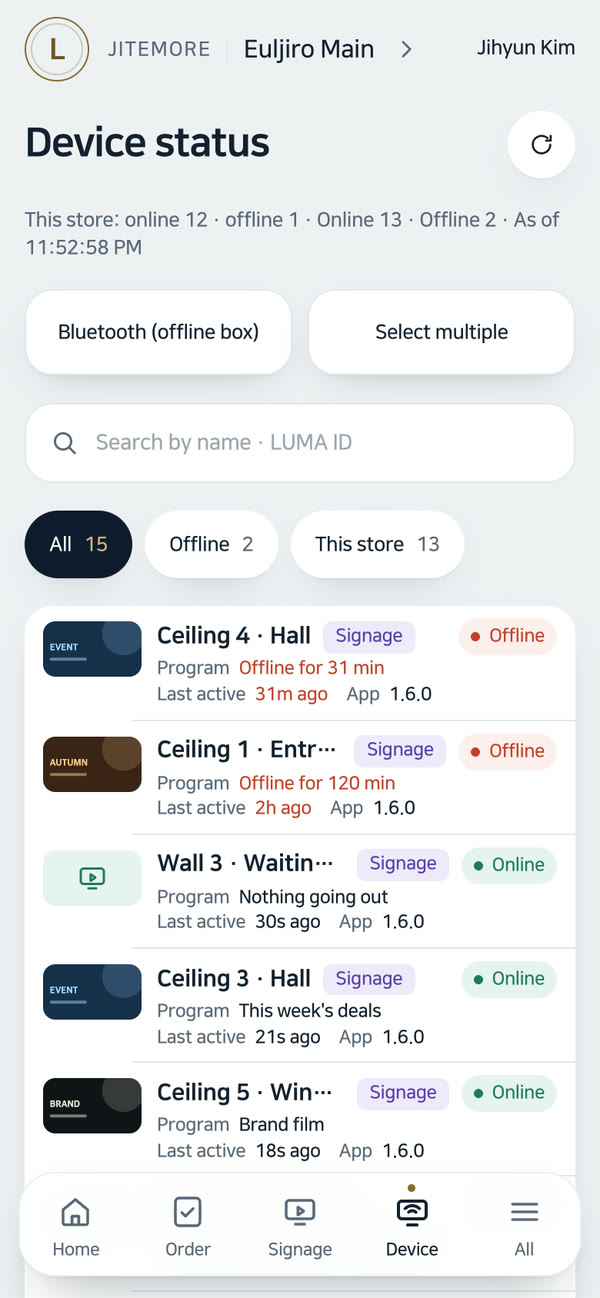
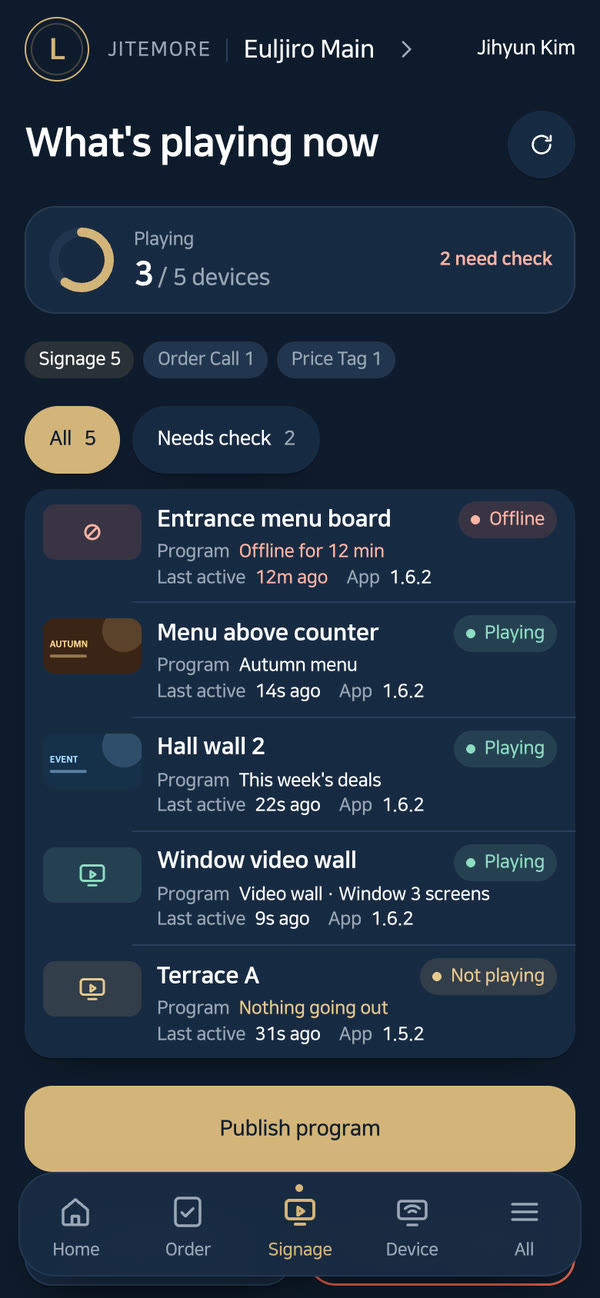
Real screen of LUMA AI CMS

Actual admin app screen · sample store

If this sounds familiar

Still swapping content with a USB drive for every store and screen?

Key features

01 / 05

Creating content

Media Library

Organize and search photos and videos with folders and tags. Uploaded files are automatically optimized to play well on store screens.

Screen editor

Design a screen by dragging photos, videos, text, shapes, and menus onto a screen-sized canvas. Supports undo and saved version history.

300+ templates by industry

Pick from 300+ menu boards, promotions and notice screens for cafés, restaurants, supermarkets, retail and more — in six languages — and edit them right away.

Clock & weather widget

Add the current time and the store's local weather onto a screen to create an informational display.

02 / 05

Menu Board connected to POS

Same menu data as POS

The Menu Board reads the menu and prices from POS directly. No need to enter the menu twice.

Automatic price and sold-out updates

When you change a price or mark an item sold out in POS, the store screens showing that menu are automatically re-published shortly after.

Sale price and sold-out display

Discounted items show a strikethrough on the original price with a SALE badge, and sold-out items show a sold-out label on screen.

Register menus from Excel or menu board photos

Upload your existing Excel file or a photo of your menu board, and AI reads the items and prices to fill in a table for you. Check it and save.

AI menu photo generation and retouching

For items without photos, AI generates food photos, and existing photos are retouched to look better. Only approved photos are attached to the menu.

03 / 05

Schedule and Publish

LUMA AI CMS — Schedule and Publish

Playlist

Group multiple screens in order and play them back seamlessly. Name each item as an ad, and a record of how many times each ad played is kept.

Day-of-week, time-slot, and date-range schedules

Set rules like morning/lunch/evening, weekday/weekend, or event periods, and content switches automatically. Late-night schedules that cross midnight are handled correctly, and the screen shows what is playing now and why.

Scheduled publishing and progress tracking

Publish right now or at a set time, and check actual delivery per device with progress status and screen captures.

Emergency publish

Instantly show an urgent notice on all selected screens. Confirmed with a manager PIN and logged, it returns to the original schedule once cleared.

Welcome screens for guests

On the day an important guest visits, build a welcome screen from a few answers, show it on the screens you choose, and return to the regular schedule when it ends (LUMA Welcome Sign).

Pickup call bar

Show ready order numbers in a bar beneath menu boards and ad screens. If no store is selected, it uses the store of the device showing it.

04 / 05

Device operations

LUMA AI CMS — Device operations

Device groups and screen orientation

Group devices by business type and store, and name them. Check portrait/landscape installation and current screen angle in the console.

Power schedule by day of week

Set the times screens turn off and on for each day of the week. Even while the box is off, it turns itself on at the set time.

Keeps playing even if offline

Content is stored on the box, so it keeps playing the last screen even if the internet disconnects, and automatically catches up once reconnected.

Store Designer

Place devices on a store floor plan and see the status of each screen at a glance.

05 / 05

Reports and trust

Playback report

Shows what played, where, and for how long. Overlapping playback is counted only once, and periods with no record are not hidden, so you can show it to advertisers as is.

AI-generated label

When AI-generated content is shown on screen, an “AI Generated” label is automatically added in the store's language.

Change the price, and the store Screen follows

Edit, schedule, and keep playing even when disconnected · AI-generated video

Equipment

Runs on this equipment

LUMA box (RK3566 · RK3576)

A player connected to a display to receive and play content — one box per screen, wired LAN or Wi-Fi

Required

HDMI display/TV (landscape/portrait)

Menu Board and ad screens — FHD landscape/portrait by default, installation angles 0°/90°/180°/270°. Any store TV with an HDMI input works too

Required

Bar-type display

Elongated screens like shelf strips or menu header bars — preset sizes for bar-shaped screens available

Optional

Internet connection (wired LAN or Wi-Fi)

The channel through which content and schedules are received from the console — if disconnected, the last content keeps playing, and it automatically catches up once reconnected

Required

How it works

From setup to operation

Change the menu board everywhere on price-increase day

  1. Edit prices in POS menu editing
  2. LUMA AI CMS finds the store screens showing that menu and republishes it automatically
  3. The new price appears on every menu board
  4. The change history records who changed what and when

Automatic switch between lunch and dinner menus

  1. Create a lunch menu screen and a dinner menu screen as templates
  2. Set the schedule to lunch 11:00–15:00 and dinner 17:00–22:00 on weekdays
  3. The screen switches by itself at the set times
  4. Check what's currently showing on the Schedule screen

Instantly show sold-out items

  1. An ingredient runs out in the kitchen
  2. Mark that item as sold out on the POS
  3. A sold-out label appears automatically on the menu board

Use cases by industry

How these stores use it

Franchise cafe

At stores where multiple branches use the same menu, but screens must be changed branch by branch for every price increase or new item

By having the menu board republish automatically whenever headquarters edits the POS menu once

There's no more changing each branch by USB, and prices are less likely to mismatch between branches

Snack bar / fast food

At stores where ingredients frequently run out during peak hours

By linking the POS sold-out button to the menu board

Fewer cases of customers finding out an item is sold out only after ordering

Retail / convenience store

At stores where the products to promote differ by morning, lunch, and after-work hours

By using time-based schedules together with vertical promotion templates

The right promotion for each time slot goes out without staff having to touch anything

Hospital, bank, or hotel lobby

At places that display notices in waiting areas and need the screens turned off at night

By using notice templates, clock/weather widgets, and day-of-week power scheduling together

Notices stay up to date and turning screens on and off is never forgotten

Store advertising operations (shopping mall / store media)

At places that run outside ads on screens and must show advertisers proof of playback

By labeling each playlist item with the ad name and using playback reports

You can show, with evidence, which ad ran where and how much
Get started

LUMA AI CMS, tailored to your store

Tell us your store size and the equipment you use, and we'll recommend the right setup and quote. We'll also check your existing screens and printers.

  • Live demoWe'll walk you through ordering, publishing, and management on real screens.
  • Custom setup & quoteWe pick only the solutions and equipment you need based on your industry, seating, and screen count.
  • Remote support after installationCheck device status in the console, and if an issue comes up, we'll help resolve it remotely.

Specs

Playback device
LUMA box (RK3566 · RK3576)
Screen orientation
Landscape · Portrait (installation angle 0°·90°·180°·270°)
Default screen size
FHD 1920×1080 landscape · 1080×1920 portrait (device detects actual resolution)
Content types
Photo · Video · Text · Shape · Menu · Clock · Weather
Schedule method
Playlist · Day-of-week/time/period schedule · Instant/scheduled publish · Emergency publish
Menu currency
KRW · USD · EUR · JPY · CNY · GBP · MXN · CLP
Offline
Keeps playing the last content if the internet drops · Resumes automatically after reboot
Power management
Day-of-week power on/off schedule · Optional periodic reboot
Console languages
Korean · English · Spanish · Japanese · Chinese · German
Used together with
LUMA POS (Menu) · LUMA Welcome Sign · AI Advertising Studio · Video Wall · Ad Analytics

Frequently asked questions

Does the screen turn off if the internet goes down?

No. Content is stored on the device and keeps playing.

Can the screens be in different stores?

Yes. Manage screens across all stores from a single console.

If I change a price in the POS, does the Menu Board change too?

Yes. The LUMA AI CMS Menu Board uses the same menu data as LUMA POS. When you edit a price or mark an item sold out, it is automatically published again shortly afterward to the Store Screens that show that item, and discounted items are shown with the original price struck through.

Can I automatically switch between lunch and dinner menus by time?

Yes. Set a Schedule with day-of-week, time-of-day and date-range rules, and the Screen changes by itself at the set time. Late-night schedules that run past midnight are also supported, and in the console you can see at a glance what content is showing right now and why.

Can I show an urgent notice on all Screens at once?

Yes. Emergency Publish instantly shows a notice on all the Screens you select. It is confirmed with the manager's PIN and a record is kept, and when you cancel it, each Screen returns to its original schedule. The notice also goes out to video wall Screens.

What photo and video files can I upload?

You can upload photos in JPG, PNG, WEBP, GIF and SVG up to 50MB, and videos in MP4, WEBM and MOV up to 2GB. Uploaded videos are automatically optimized so they play well on Store Screens. Please convert iPhone photos (HEIC) to JPG before uploading.

Can Screens turn off automatically after closing and turn on again in the morning?

Yes. Set the off time and on time for each day of the week, and the box turns the Screen off at that time and turns it back on by itself at the set time even while it is off. You can also turn on a regular reboot if needed.

Tailor it to your store now.

Our team will help you work out the setup and quote.

Contact sales All solutions